June 12, 2026

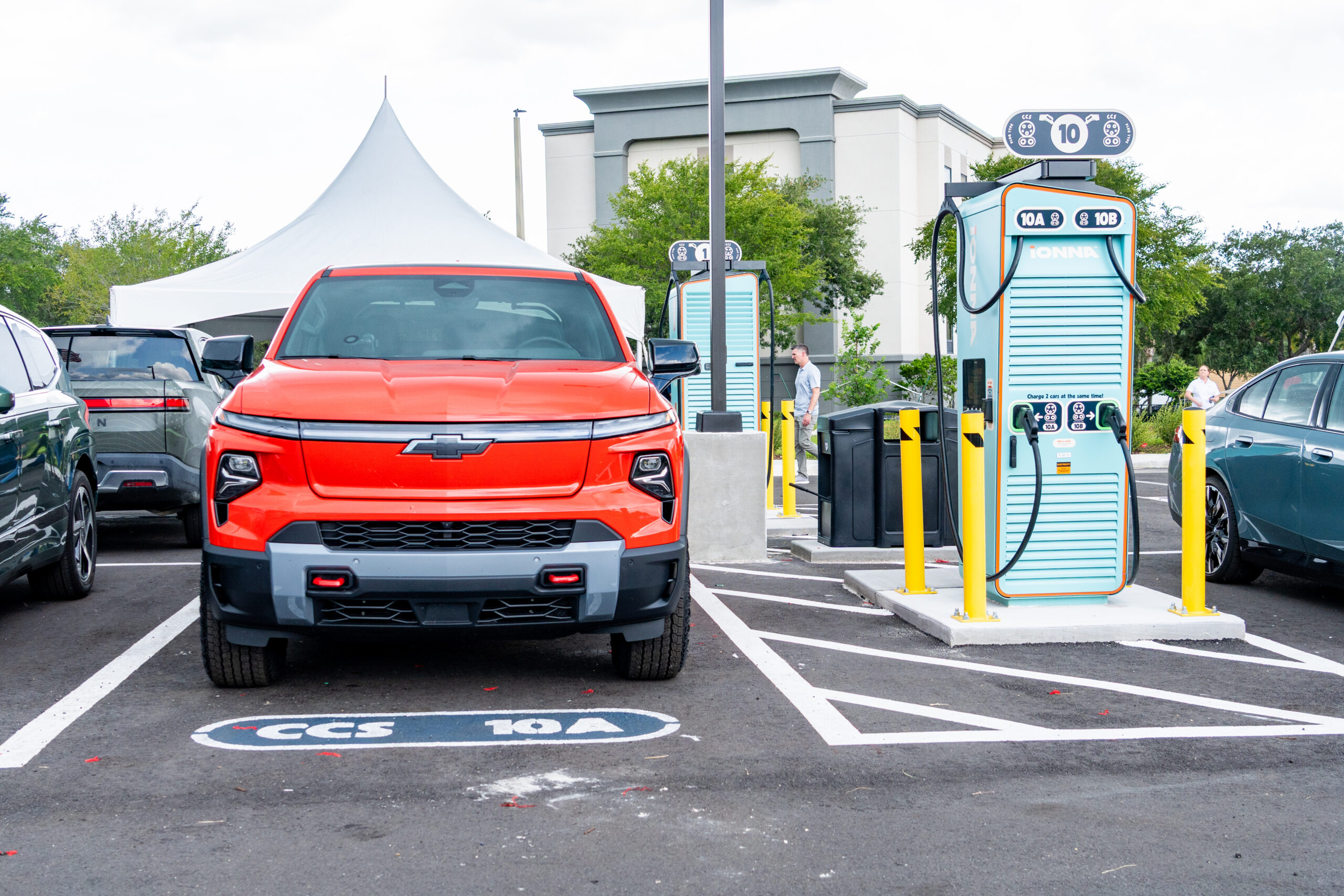
Every great road trip starts with great planning, and lucky for you, finding an IONNA Rechargery is now even easier within your GM Vehicle App! We made a little video to show you the way, but here’s the step-by-step too, so you can follow along at your own pace.
Click on the map icon to show charging stations near you.
A map full of choices is great, but a map full of your favorites? Even better. Tap the filter button on the right, head to “Networks” and make sure IONNA is the only one checked. Just like that — the clutter clears and the path forward gets a whole lot brighter.
Back to the map you go! Now you’ll see all the IONNA Rechargeries in your neck of the woods. Give one a tap to learn a little more about it — think of it as getting to know a new friend before you stop by.
Before you hit the road, scroll down to the “Good to Know” section and tap the arrow to make sure your Energy Pass is set up. While you’re there, for an extra-smooth visit, tap IONNA under “Included Networks” and switch on Plug and Charge. No cards, no codes, just plug in and go.
Take a quick look for any details and active discounts (because who doesn’t love a good deal?). When you’re ready, tap “Directions” pick your favorite navigation app, and off you go.

